




Set up email account in Mozilla Thunderbird (Windows, Mac, Linux)
Here's how to add an email account in Mozilla Thunderbird. This program is available for Windows, Mac, and Linux and can be downloaded from the official website. Thunderbird. After installation, you can open Thunderbird by simply clicking on the icon.
In this example we use the domain examplewebsite.nl. Make sure to replace this with your own domain. The domain is the part after the @ sign in your email address (@examplewebsite.com) or what you type into your browser's address bar (for example, after https://www.).
Connect Thunderbird via IMAP
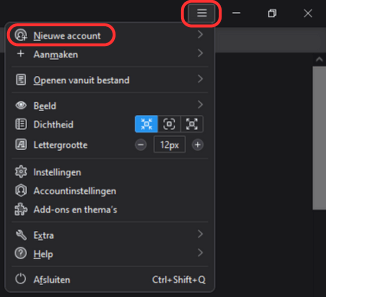
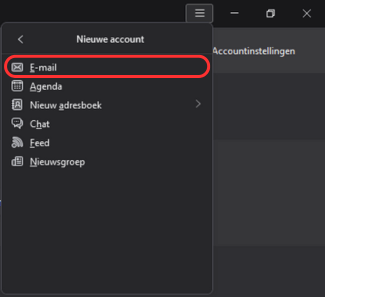
3. Enter your name, email address and password and click on Continue.
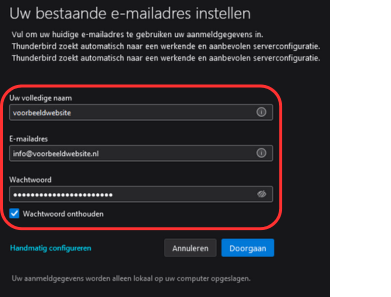
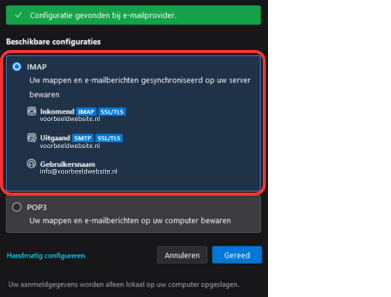
The IMAP and SMTP server addresses are often based on your domain name (for example, examplewebsite.com). If you're using an external server, you may need to enter the server address from your hosting provider. Then click Ready to complete the configuration.
Need help? We're happy to help. Send an email to info@deonlinewebsitebouwer.nl or call us.
We ensure that you can use your email quickly and smoothly!
 Dutch
Dutch English