






Generate and activate DKIM
In this article, you will read how to set up Google Workspace DKIM.
You will learn step-by-step how to secure your emails so that they arrive safely and do not end up in your customers' spam folders.
Ensure you have administrator rights (Admin rights) has for your Google Workspace environment and that you know where your domain name (DNS) is hosted.
Google Workspace Admin Console
1. Go to admin.google.com and log in to the Google Workspace Admin Console.
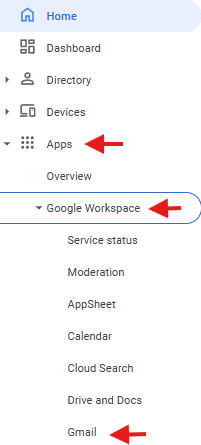
2. Click on in the left menu Apps, select Google Workspace and then click on Gmail.
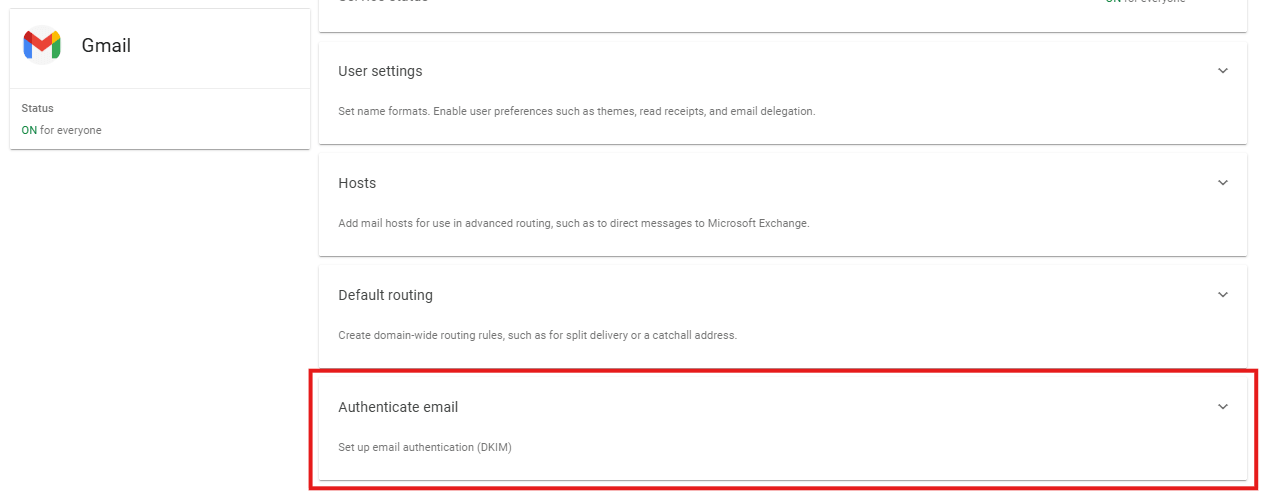
3. Scroll down in the Gmail menu and click on Verify email (Authenticate email).
4. Select the from the drop-down menu at the top own domain name for which you want to secure the email.

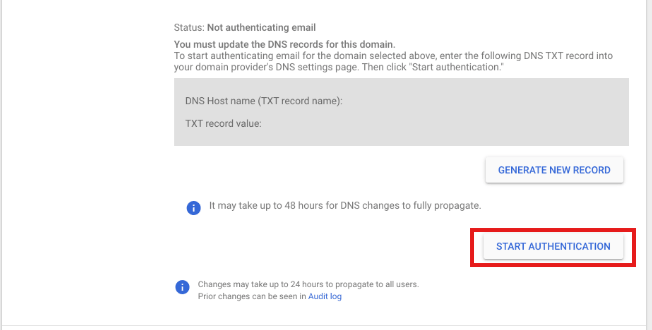
5. Click on the button generate new record (Generate new record). You can leave the default settings (such as 2048-bit) and click 'Generate' directly.
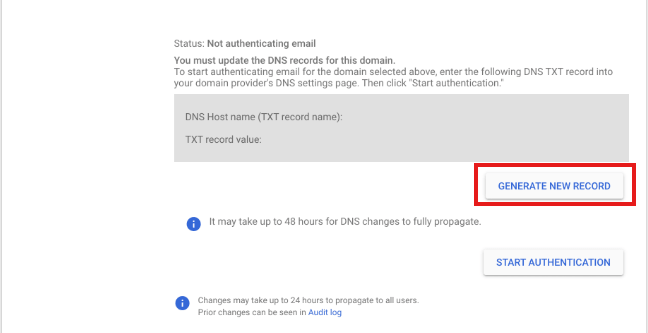
6. Google now shows you a unique TXT record. Copy this name and long code, and add it as a new TXT record in your hosting provider's DNS settings.
7. Important: As soon as the code is in your DNS, return to this screen in Google Workspace and click the button at the bottom. Start verification (Start authentication). Please note: the status must be set to 'Authenticating', otherwise the security is not active!
Need help? We're happy to help. Send an email to info@deonlinewebsitebouwer.nl or call us.
 Dutch
Dutch English