






Add email account to Gmail App
This article explains how to add an IMAP email account in the Gmail app.
In this example we use the domain deonlinewebsitebouwer.nl. Make sure to replace this with your own domain. The domain is the part after the @ sign in your email address (@examplewebsite.com) or what you type into your browser's address bar (for example, after https://www.).
Add Email to Gmail App
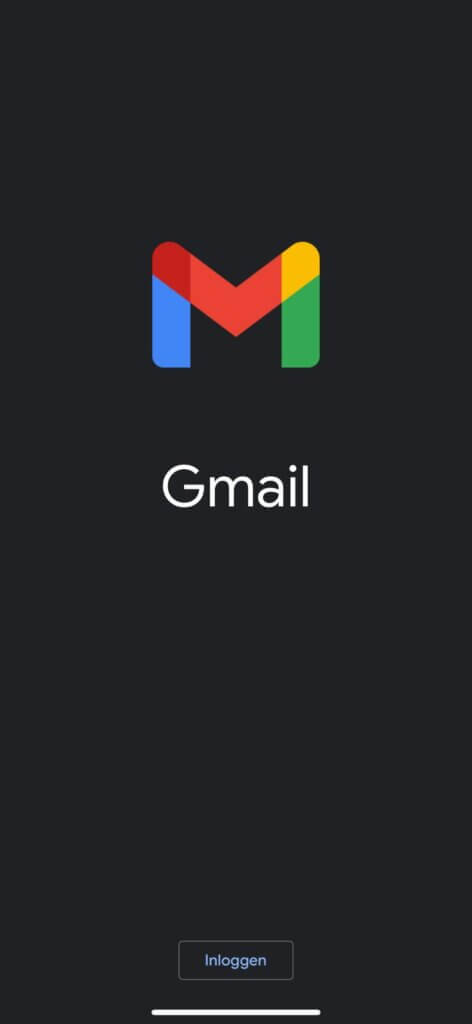
1. In Gmail, click at the bottom Login.
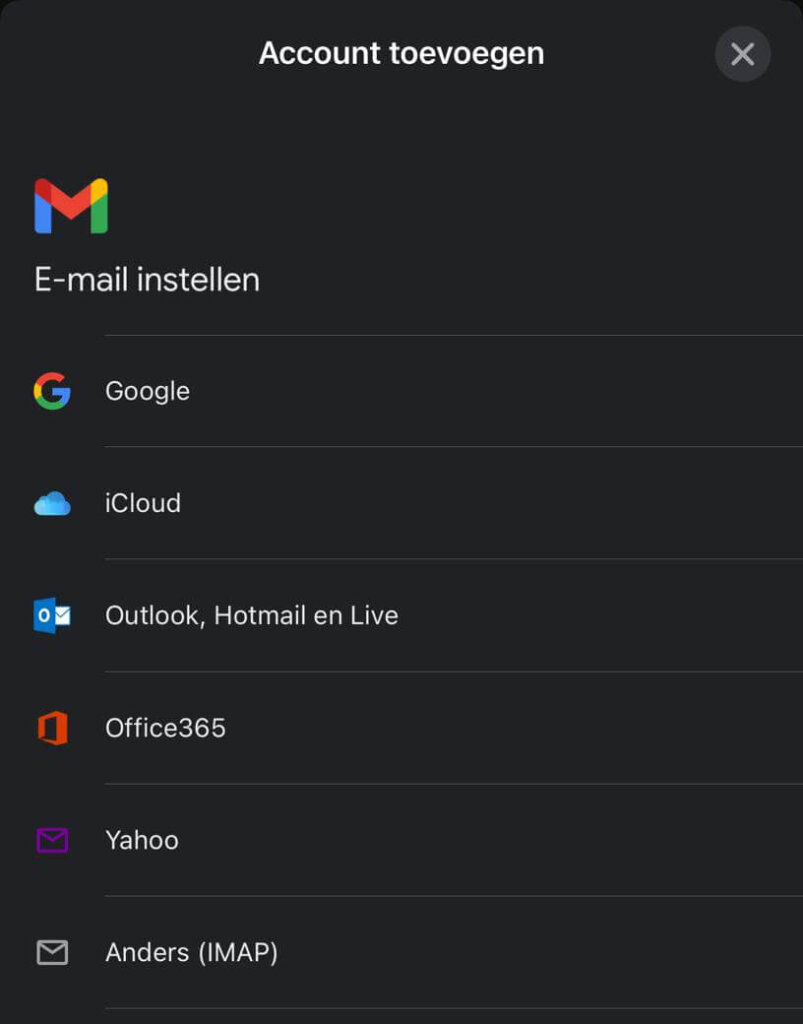
2. In the menu click on Other (IMAP).
3. If you already have accounts in the Gmail App, click on Add another account.
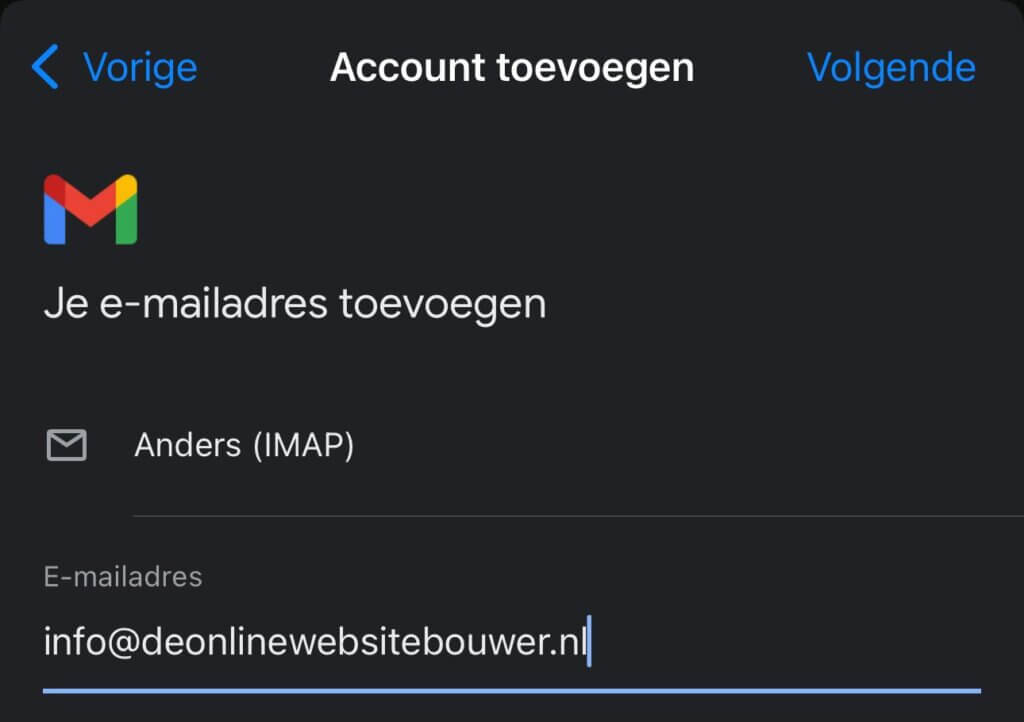
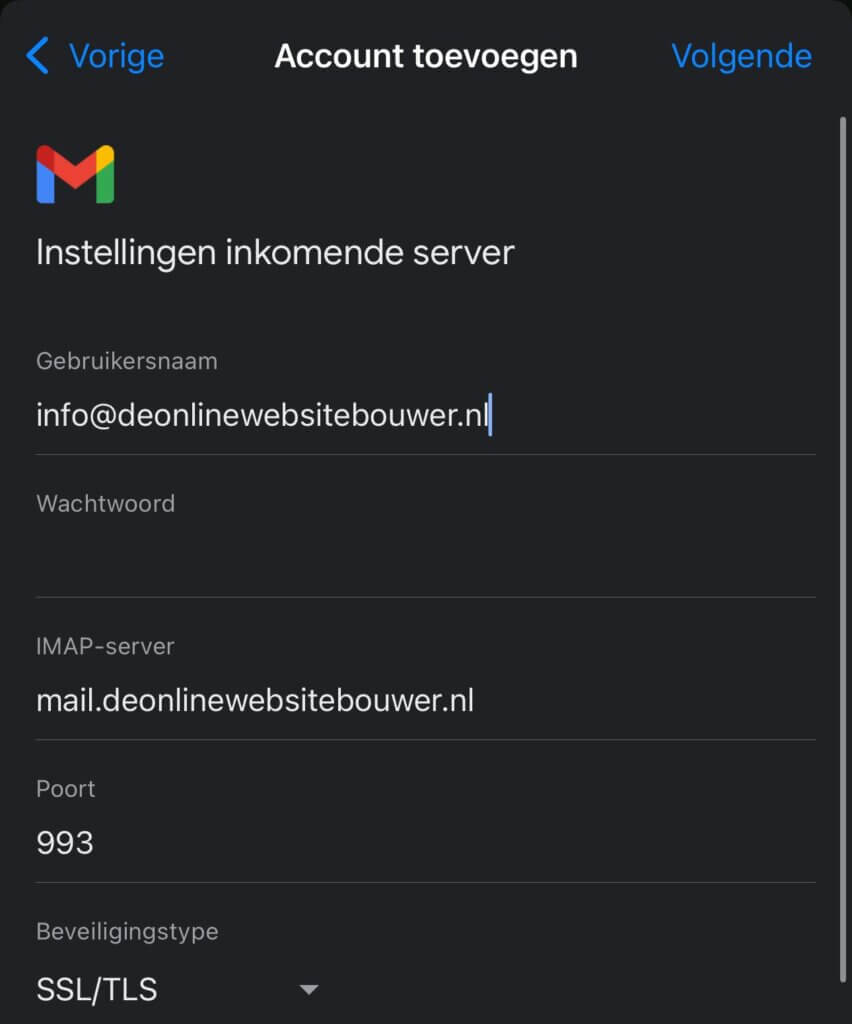
5. Then enter the requested IMAP data:
- Bee IMAP server for incoming mail choose the secure connection method SSL/TLS, set the port to 993 and fill in the incoming mail server. In this example, that is mail.deonlinewebsitebouwer.nl, replace this with your own mail server.
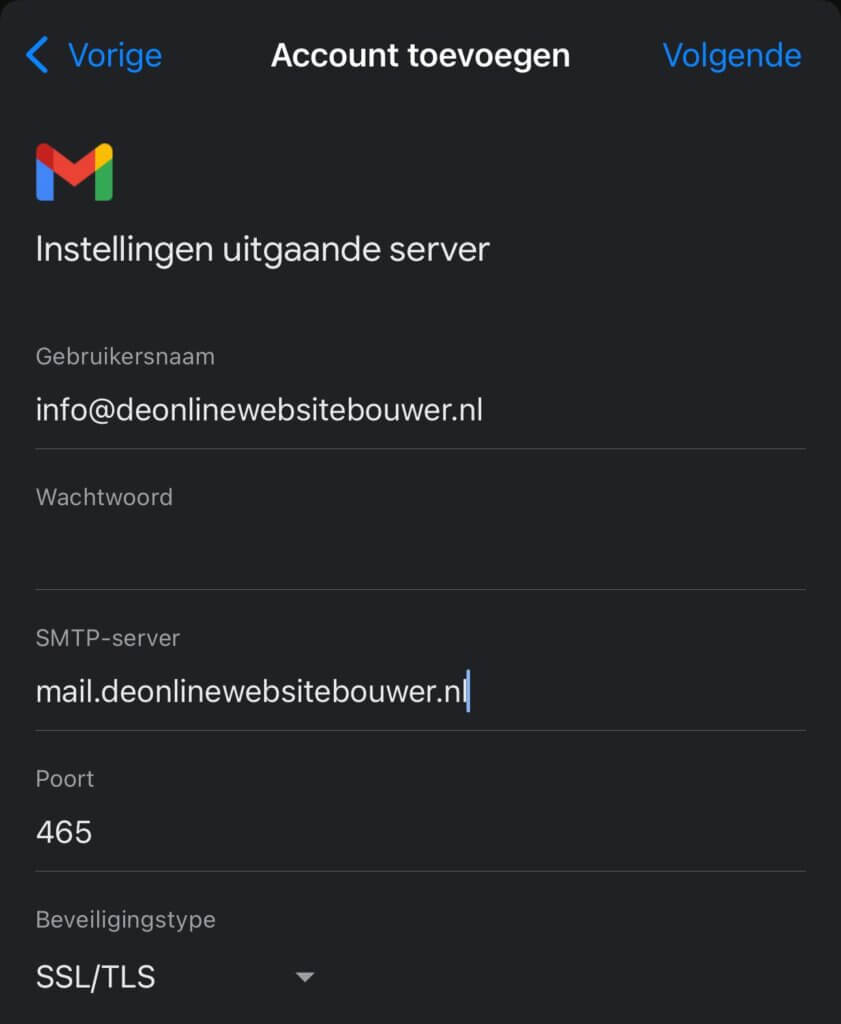
6. Enter the SMTP details:
- At the SMTP configuration enter your email address at SMTP username and your email password at Password.
- Bee SMTP server for outgoing mail choose the secure connection method SSL/TLS, set the port to 465 and enter the same server as in the IMAP settings. In this example, that is mail.deonlinewebsitebouwer.nl, replace this with your own mail server.
7. Click on Next and you can use your email.
Your email has now been successfully added to the Gmail App.
Need help? We're happy to help. Send an email to info@deonlinewebsitebouwer.nl or call us.
We ensure that you can use your email quickly and without any problems!
 Dutch
Dutch English