





How do you add a user to Google Ads?
Google Ads offers businesses a versatile platform to effectively reach their target audience across search engines, display networks, and more. Adding a user to your Google Ads account allows you to collaborate and manage your campaigns more efficiently. With the right settings, you maintain control over access and performance.
Follow the steps below to easily add a user to your Google Ads account and optimize your advertising results.
Requirements*
- Administrative rightsYou must have administrative privileges in your Google Ads account to add users. Only administrators can grant or modify access.
- Google account: The new user must have a Google Account (for example, Gmail) or an email address associated with a Google Account.
- User's email addressYou'll need the email address of the user you want to add. Make sure it's a valid and active email address.
- Selecting the correct access rights: Determine in advance which access level the new user needs. Four levels are available:
- Email only: Email only (for notifications, without account access).
- Billing: Billing (access to payments and billing settings only).
- Read only: Read only (can view account information, but cannot edit anything).
- Standard: Standard (full access to campaigns, but no user management).
- Admin: Administrator (full access, including user management and settings).
In this guide, we use fictitious information, such as example account names and example companies. Please be sure to replace these with your own business information, such as the name of your Google Ads account, your business profile, and the corresponding payment information. Also, always double-check that all entered information is correct before saving the settings to ensure smooth operation of your campaigns.
Add user to Google Ads
1. Go to the Google Ads overview page and click ⚙ Admin (Administrator).
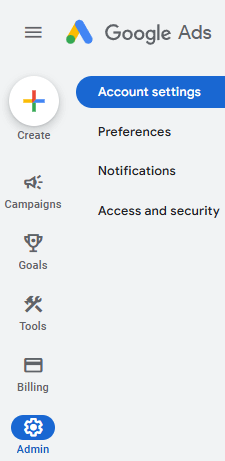
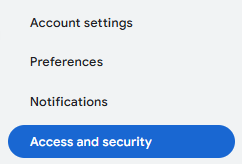
2. Go to Access and security (Access and security).
3. Click on the blue circle with the ✚ icon to add a user.
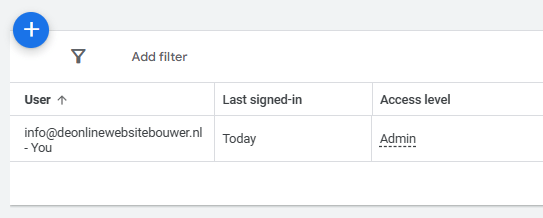
4. Enter the new user's email and choose the access level (access level).
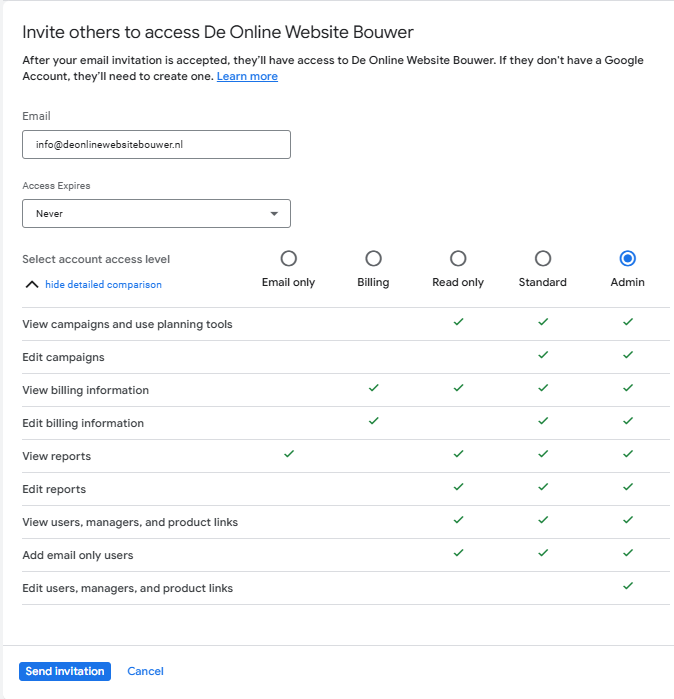
5. Check the data and click on Send invitation (Send invitation).
Accept the invitation for advertising account
The invited user will receive an email with an invitation to access the ad account. To accept this invitation, the user clicks the link in the email and follows the steps to confirm access. Once the invitation is accepted, access is automatically added, and the user can begin managing or viewing the account, depending on their configured access permissions. Ensure the user accepts the invitation within the specified timeframe to gain access.
NB: The last step above, accepting the invitation, is exclusively for the invited user. Only they can open the invitation, confirm access, and thus gain access to the account. Ensure that the invited user completes this step themselves to prevent any access issues.
Need help? We're happy to help. Send an email to info@deonlinewebsitebouwer.nl or call us.
We ensure that you can use your advertising account on Google quickly and smoothly.
 Dutch
Dutch English