






Add email account to new Outlook (Windows)
This article explains how to add an IMAP email account in Outlook. Because there are several versions of Outlook, this guide only applies to the latest version.
In this example we use the domain examplewebsite.nl. Make sure to replace this with your own domain. The domain is the part after the @ sign in your email address (@examplewebsite.com) or what you type into your browser's address bar (for example, after https://www.).
Add email to new Outlook
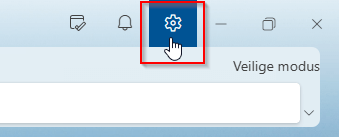
1. In Outlook, click on the top right corner gear.
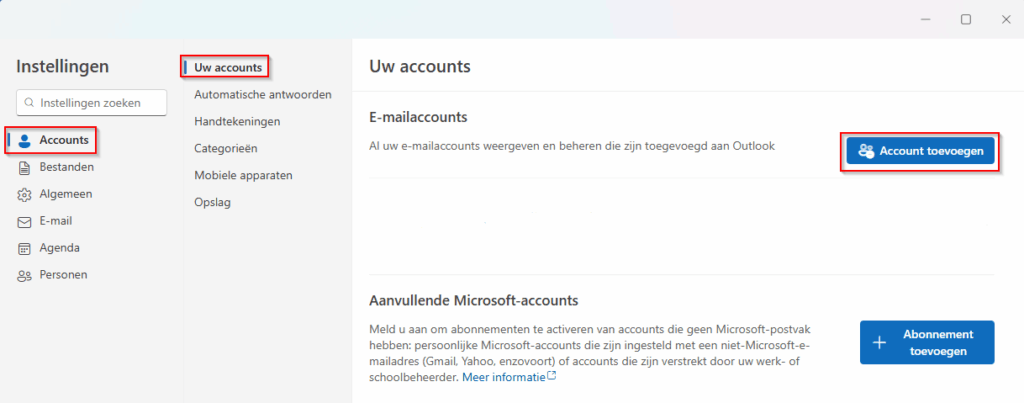
2. In the pop-up menu, click on Add account.
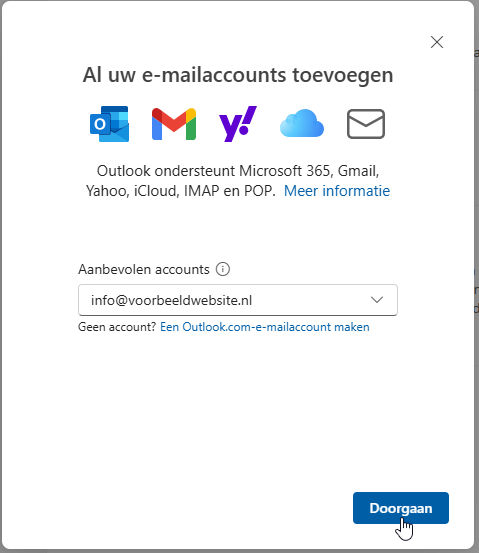
3. In the new pop-up menu, enter your email address and click Continue. This may take a while and sometimes you may receive an error message, which is normal.
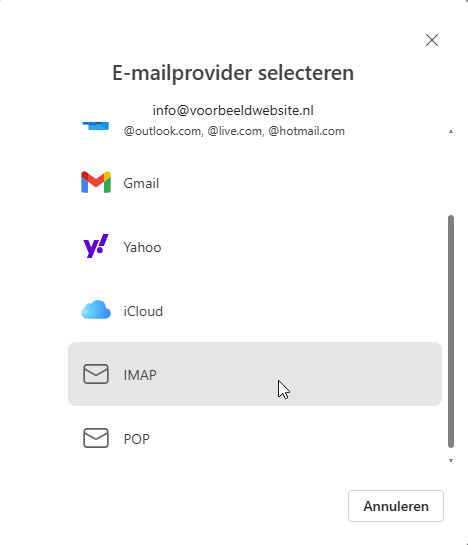
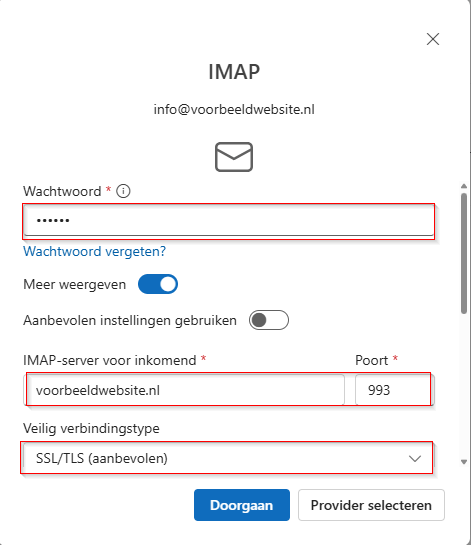
5. Enter your email address password and click Show more. Then put Use recommended settings off and wait until the loading circle behind this option disappears.
6. Then enter the requested IMAP data:
- Bee IMAP server for incoming mail choose the secure connection method SSL/TLS, set the port to 993 and fill in the incoming mail server. In this example, that is examplewebsite.nl, replace this with your own domain.
- Then scroll down to SMTP details.
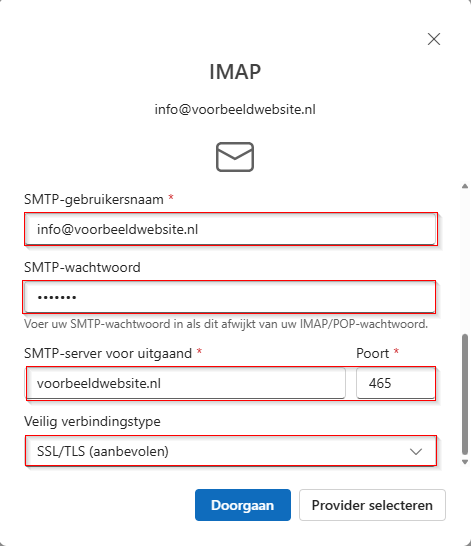
7. Scroll down and fill in the SMTP details:
- At the SMTP configuration enter your email address at SMTP username and your email password at SMTP password.
- Bee SMTP server for outgoing mail choose the secure connection method SSL/TLS, set the port to 465 and enter the same server as in the IMAP settings. In this example, that is examplewebsite.nl, replace this with your own domain.
9. At this point, Microsoft will warn you that all data, email, and contacts from the IMAP mailbox will be copied to Microsoft. If you agree, click Continue. If you don't want this, you'll need to switch back to classic Outlook.
Your email has now been successfully added to the new Outlook.
Need help? We're happy to help. Send an email to info@deonlinewebsitebouwer.nl or call us.
We ensure that you can use your email quickly and smoothly!
 Dutch
Dutch English