


How do you create a LinkedIn advertising account?
LinkedIn offers businesses a powerful platform to reach their target audience through targeted advertising. Creating an advertising account is easy and gives you access to tools to manage and optimize your campaigns. Follow the steps below to create a LinkedIn advertising account and take your brand to the next level.
Click here to go directly to the LinkedIn advertising page go and start today.
Requirements*
- LinkedIn company page
- Credit card (American Express, Mastercard or Visa)
In this guide, we're using fictitious information, such as example account names and example companies. Be sure to replace these with your own company information, such as the name of your ad account, your LinkedIn company profile, and the corresponding payment information. Also, always double-check that all entered information is correct before saving the settings.
Create a LinkedIn advertising account
1. Go to the LinkedIn advertising page and fill in the correct information.
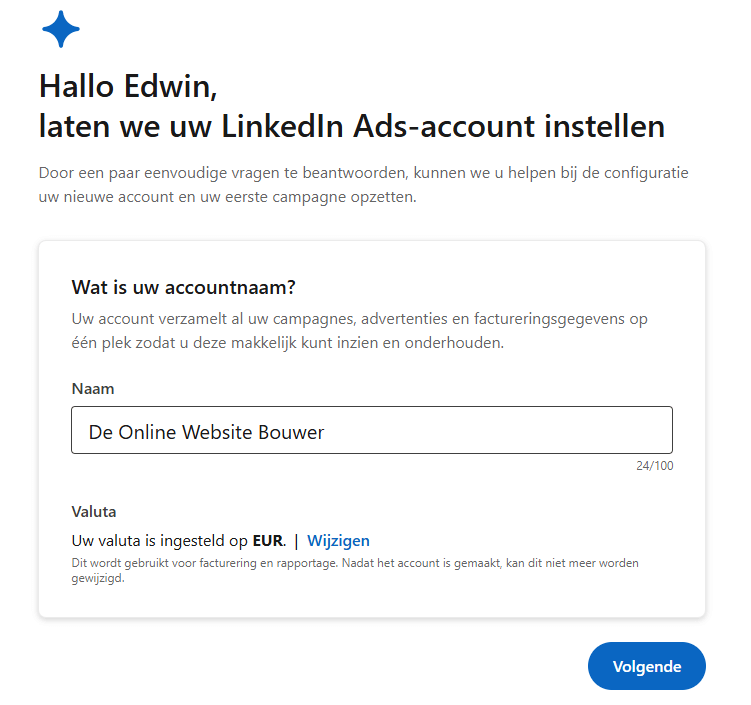
2. Choose the LinkedIn Page what you want to advertise and link it to your advertising account.
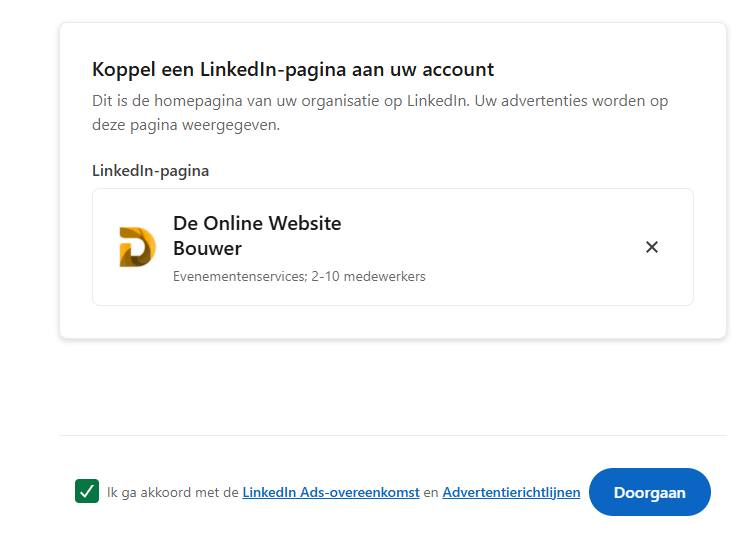
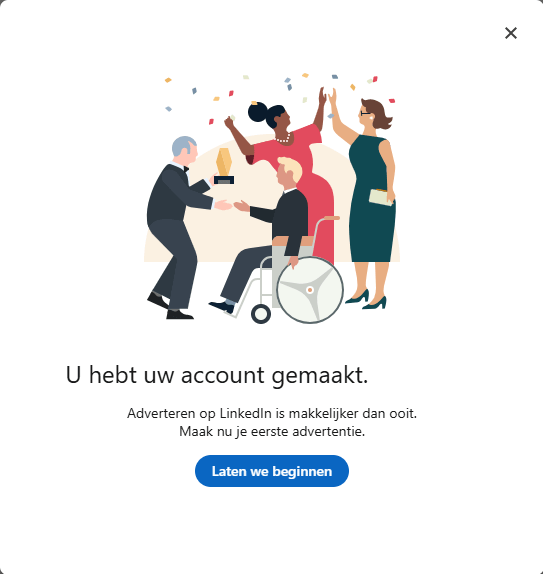
3. Agree to the terms and click “Continue” to create the advertising account.
Add payment method
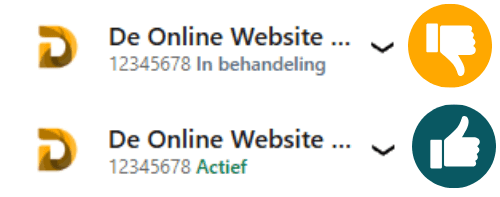
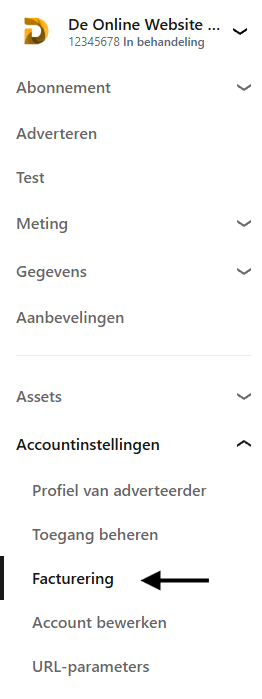
4. To activate your LinkedIn ad account and start campaigns, you'll need to add a payment method. If no payment method has been added yet, the ad account will remain on "“In treatment” are available. LinkedIn only offers payments in the Netherlands via credit card. Below you can see an example of the status.
5. To set the payment method, go to the heading “Billing”
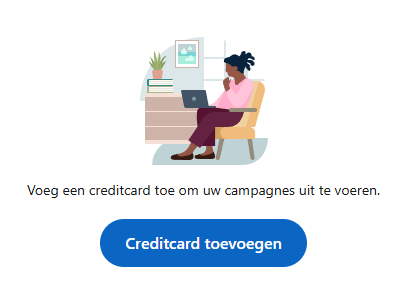
6. Here you can find a credit card adding of American Express, MasterCard or Visa.
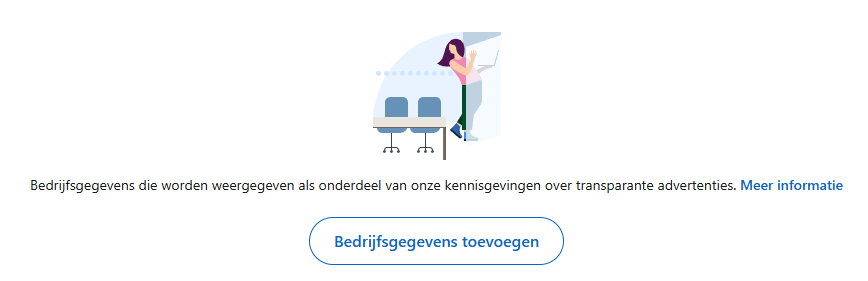
7. After this, you add the company details.
Get Ad Account ID
8. You will now see that the status at the top left of the ad account changes to “Active“. When you hire someone to manage your LinkedIn ads, they have the Advertising Account ID Needed to access your account. This unique ID is easy to find and should be shared with the appropriate person. You can find the Advertising Account ID at the top left of the page.

9. Only share this ID with people or agencies you trust to access your ads. The ID allows them to access your ads through their own Campaign Manager to request access.
NB: Handle your Ad Account ID with care. It doesn't provide full access to your account, but it is an important identifier for your campaigns. Ensure that the person requesting access is granted the appropriate permissions within Campaign Manager.
Need help? We're happy to help. Send an email to info@deonlinewebsitebouwer.nl or call us.
We ensure that you can use your advertising account on LinkedIn quickly and smoothly.
 Dutch
Dutch English